 mcpock
The mcpock guide
Everything you need to install mcpock, read what it tells you, and connect it to your AI agents.
Install
Download mcpock.dmg, open it, and drag mcpock to
Applications. mcpock is signed and notarized by Apple, so Gatekeeper
lets it open without a warning; you do not need to right-click and
choose Open, and you do not need to change any security setting.
- Download
mcpock.dmgfrom the download page. - Open it and drag mcpock to Applications.
- Launch it. mcpock lives only in the menu bar (look for the server-rack icon); there is no Dock icon and no window.
Needs macOS 26 or later on Apple Silicon. The Glass theme's see-through panel needs macOS 27.
First run
mcpock starts checking your servers the first time you click its icon. On a Mac with many agents, the first list takes about 10 seconds.
- If one of your servers lives in Documents, Desktop or Downloads, macOS asks whether mcpock may open that folder. Click Allow: mcpock has to start the server from there to check it. If you clicked Don't Allow, turn it on again in System Settings > Privacy & Security > Files and Folders (or Full Disk Access).
- Turn on Open at Login in Settings > General if you want mcpock always there.
Quick start
- Click the menu bar icon. The Servers tab lists every server, problems first.
- Click a row that needs you. The card says why, in plain words.
- Click Copy errors (or Ask an agent) and paste it to your agent, or fix the config yourself.
- Click Check again on the card (or Refresh in the footer) to confirm.
- Right-click any server for Pause, Pin, Hide, Copy Details, Copy Errors and Ask an Agent.
What each health shape means
mcpock shows health as a shape, not only a color, so a long list scans fast and the state is clear even without color.
| Shape | Means |
|---|---|
| Filled dot (green) | Fine: it started and listed its tools. |
| Ring (amber) | Slow (no answer in 10 seconds) or needs sign-in (HTTP 401/403). |
| Ring (grey) | Still checking. |
| Diamond (red) | Broken: could not start, quit on start, or refused the handshake. |
| Dash (grey) | Paused by you, or runs inside its own app and can't be checked from outside. |
The list starts with Needs you, then your pinned servers, then everything else. One toggle in the footer shows only problems.
Set up differently, Compare, Mark as intended
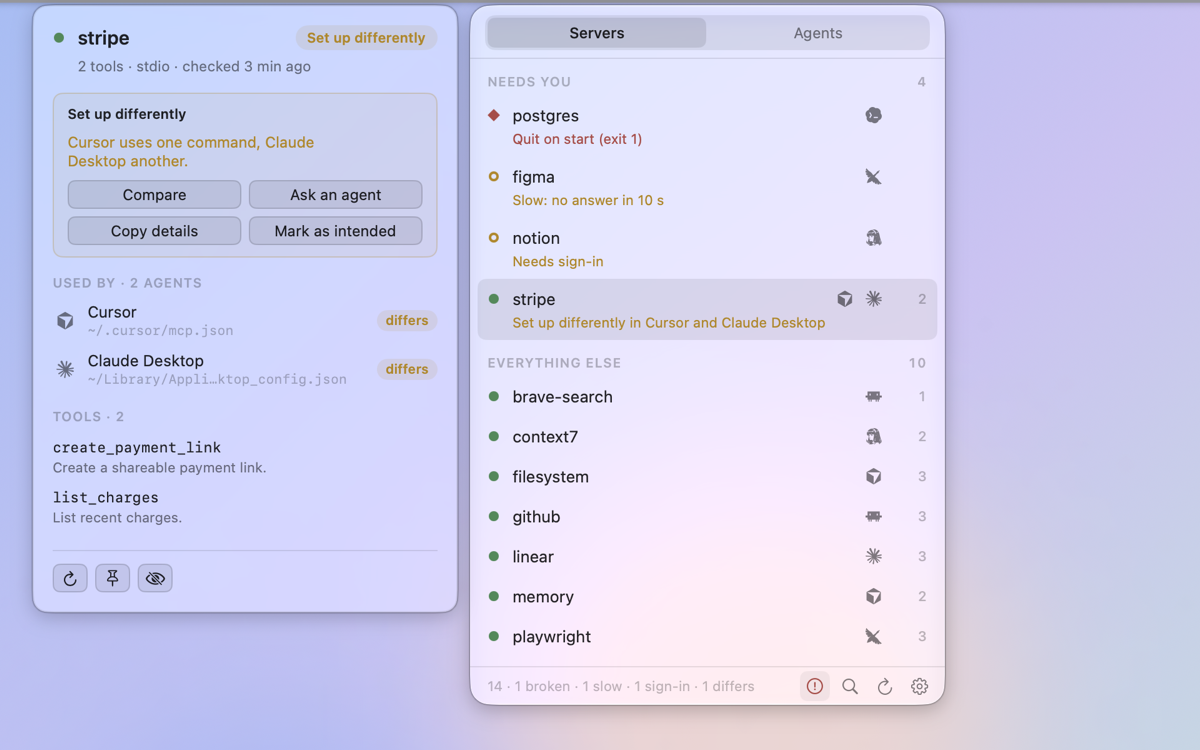
"Set up differently" means the same server name launches a different command, script or address in one agent than in the others, often an old path left behind after an update.
Click Compare on the card to see each agent's version side by side (secret values are hidden). If the difference is a mistake, fix the config in the agent that's out of step.
If it's intended, for example each agent has its own key and its own small launcher script, click Mark as intended in the card's yellow box, or right-click the row and choose Mark as Intended. The row stops counting as a problem, but mcpock keeps checking it and still shows real errors. mcpock remembers a short fingerprint of each agent's setup at that moment (never keys or env values); if the setup changes later, the note comes back on its own. The card then shows a quiet "Marked as intended" line; Undo there, or Unmark as Intended in the right-click menu, takes it back.
The Agents tab
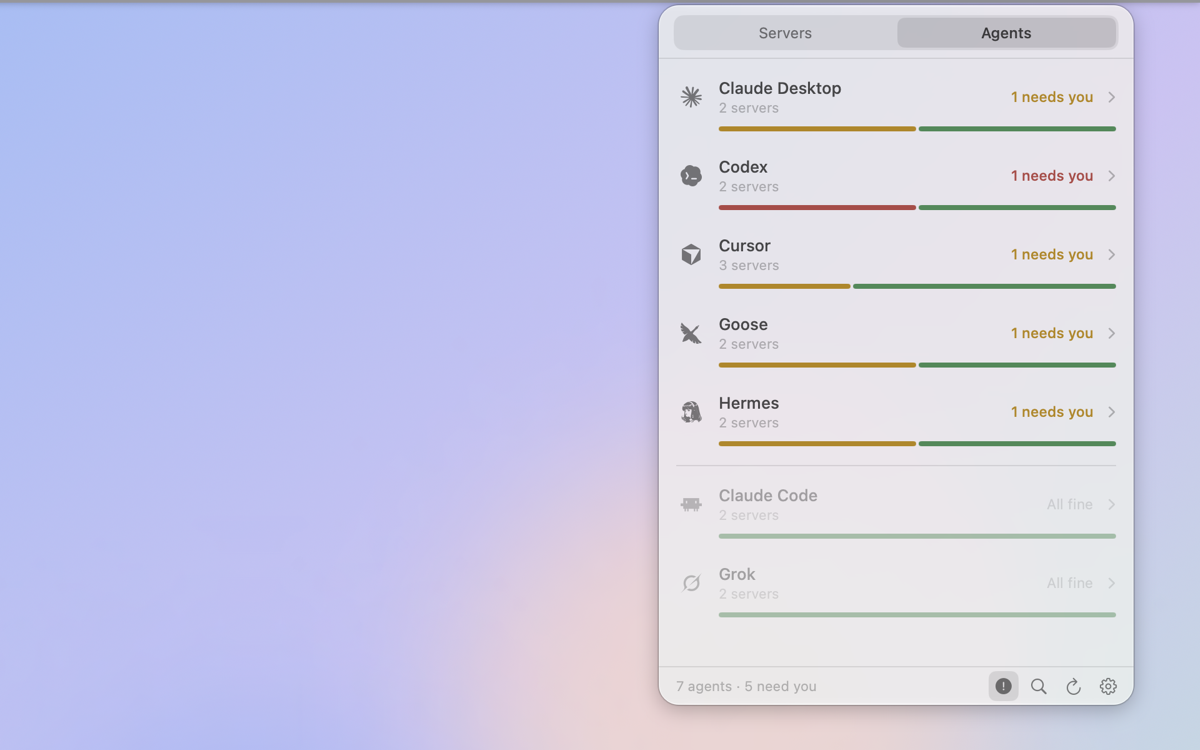
The panel opens on the Agents tab: one row per agent with a small health bar that grows in after each check. Open an agent to see its servers (the first 5, plus a +N more for the rest; servers that need you always show) and its config file. With the problems toggle on, agents with nothing wrong stay listed below, faded rather than hidden.
Next to each server under an agent, mcpock can show a usage count: how many times that agent called it in the last 7 days, 30 days or all time. It's read from the agent's own history on your Mac, supported today for Claude Code, Grok, Cursor and Hermes. A dash means that agent keeps no record mcpock can read yet. Turn this off in Settings > General > Usage.
Desktop widgets
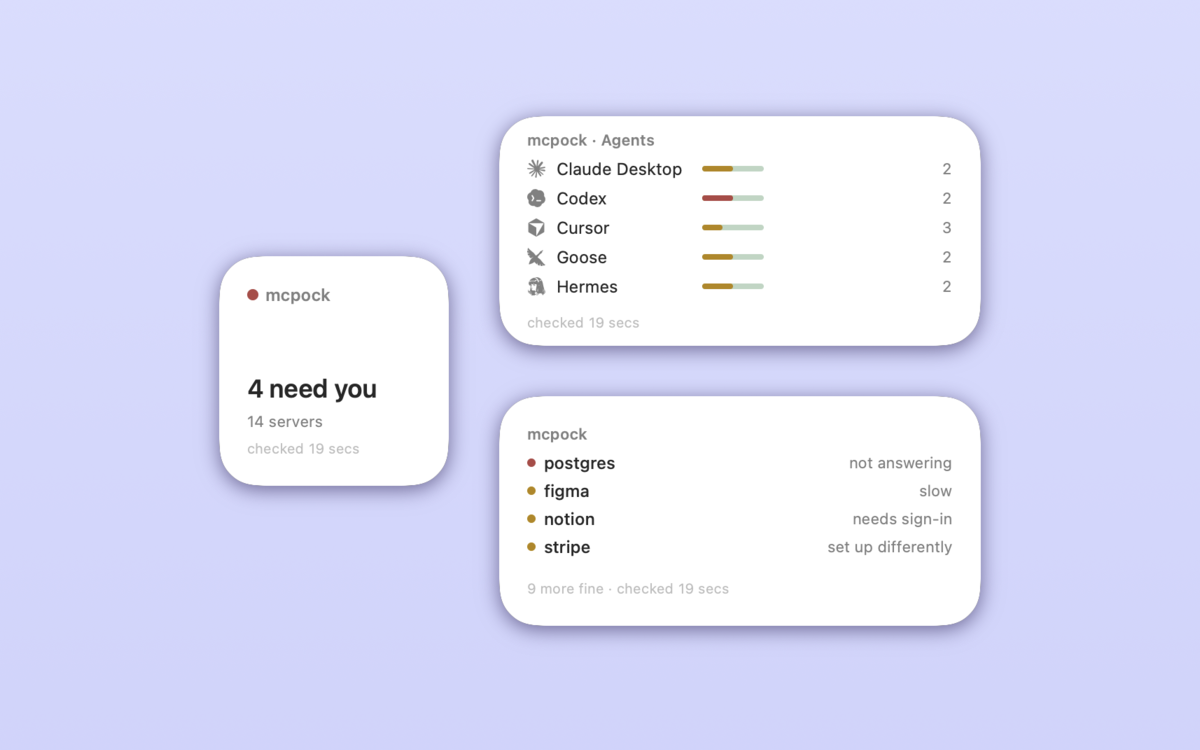
Right-click the desktop, choose Edit Widgets…, and search mcpock. Three sizes are available:
- Status (small): "All fine" or how many servers need you, and when mcpock last checked.
- Problems (medium): up to four servers that need you, in plain words, or "All fine".
- Agents (medium): one row per agent with its logo, a small health bar and its server count.
Widgets update after every check mcpock runs, at most about once a minute.
The Glass theme
Settings > General > Appearance has a fourth choice, Glass: the panel, the detail card and Settings use Apple's Liquid Glass. It follows light and dark mode, and your own glass setting in System Settings > Appearance > Liquid Glass (Clear or Tinted).
On macOS 27 the Glass panel is its own see-through window, so the glass shows your real desktop instead of a white haze. It opens and closes like the other menu bar menus: a click on the icon, a click anywhere else, or Escape.
Connect your agents
mcpock includes mcpock-mcp, a small MCP server your
agents can call. It only reads the status file mcpock writes after
each check (~/Library/Application Support/mcpock/status.json);
it never starts a server and never changes anything.
The easy way: Settings > Connect > Copy for Claude, then paste into Claude Code. The prompt walks Claude through finding your agent configs, backing each one up, adding mcpock where it's missing (in each file's own format) and testing it.
By hand: Settings > Connect has a copy button per agent with the right snippet.
Claude Code
Run in Terminal (adds mcpock for every project):
claude mcp add --scope user mcpock -- /Applications/mcpock.app/Contents/Helpers/mcpock-mcpClaude Desktop, Cursor, Windsurf, Cline, Kimi Code, MiniMax and most others
These use a mcpServers JSON block. For Cursor, this goes
in ~/.cursor/mcp.json; other agents have their own file
(see Settings > Connect for the exact path for each one):
{
  "mcpServers": {
    "mcpock": {
      "command": "/Applications/mcpock.app/Contents/Helpers/mcpock-mcp",
      "args": []
    }
  }
}
Codex and Grok
TOML, in ~/.codex/config.toml or ~/.grok/config.toml:
[mcp_servers.mcpock]
command = "/Applications/mcpock.app/Contents/Helpers/mcpock-mcp"
args = []
Goose
YAML, in ~/.config/goose/config.yaml, under extensions::
extensions:
  mcpock:
    enabled: true
    type: stdio
    name: mcpock
    cmd: /Applications/mcpock.app/Contents/Helpers/mcpock-mcp
    args: []
    envs: {}
    timeout: 60
Hermes
YAML, in ~/.hermes/config.yaml, under mcp_servers::
mcp_servers:
  mcpock:
    command: /Applications/mcpock.app/Contents/Helpers/mcpock-mcp
    args: []
aka
aka keeps its servers in its own settings, not a file. In aka, open its MCP settings and add a server:
Name: mcpock
Type: stdio
Path: /Applications/mcpock.app/Contents/Helpers/mcpock-mcp
Try it from Terminal
Confirms the helper answers, without any agent involved:
printf '%s\n' \
  '{"jsonrpc":"2.0","id":1,"method":"initialize","params":{"protocolVersion":"2025-06-18","capabilities":{},"clientInfo":{"name":"check","version":"1"}}}' \
  '{"jsonrpc":"2.0","id":2,"method":"tools/list"}' \
  | /Applications/mcpock.app/Contents/Helpers/mcpock-mcp
What your agent can ask
Once connected, ask your agent to "check my mcpock". It gets three read-only tools:
| Tool | Answers |
|---|---|
mcpock_status | Counts: how many servers are fine, broken, slow, need a sign-in or are set up differently, and when mcpock last checked. |
mcpock_problems | Every server that needs attention, with the reason, the agents and the config files involved. |
mcpock_server | Everything about one server, by name. |
All three are read-only and secrets are masked. If mcpock isn't running, hasn't checked yet, or its results are old, the answer says so.
Keyboard shortcuts
| Key | Does |
|---|---|
| ↑ ↓ | Move between rows. |
| Return | Opens the selected row's detail card. |
| Escape | Closes the card, or the panel. |
| ⌘F | Searches servers, agents and tool names. |
| ⌘C | Copies the selected row's error (or its details). |
Troubleshooting
macOS asks for permission to open a folder
One of your servers runs from Documents, Desktop or Downloads, and mcpock has to start it there. Allow it once; it sticks. mcpock's own scan never looks in those folders on its own.
A server shows broken. What now?
Click it. The card shows the real error: "command not found" (the
program isn't installed, or isn't on the PATH mcpock uses, which adds
/opt/homebrew/bin, /usr/local/bin and
~/.local/bin; use a full path in the config if needed),
"quit on start" with the server's own error text (often a missing API
key), or no answer in 10 seconds. Copy the error, fix it in the
agent's config, then Check again.
It says "Needs sign-in"
The server answered with HTTP 401 or 403. Sign in through your agent, or add the token header to the config. mcpock never signs in for you, so this state doesn't turn red.
A login page or an app opens every time mcpock checks
Starting that server has a side effect. Right-click it and choose Pause: mcpock won't start it again until you resume it.
The grey dash?
Either you paused the server, or it runs inside its own app (marked
"builtin": true) and can't be checked from outside.
Neither counts as a problem.
I added a server and it doesn't show
Click Refresh in the footer: it looks for configs again and checks everything. The timer only re-checks servers it already knows.
My agent says mcpock isn't running or hasn't checked yet
Open the panel once: mcpock starts checking on the first click, and writes the status file after that.
Hidden servers?
Still checked, just not listed. Change it in Settings > Servers.